Select Fixtures ID(s)
The Select Fixture ID(s)… Window is located in the Setup, column Show, Patch & Fixture Schedule, press and hold a cell of a FixID.
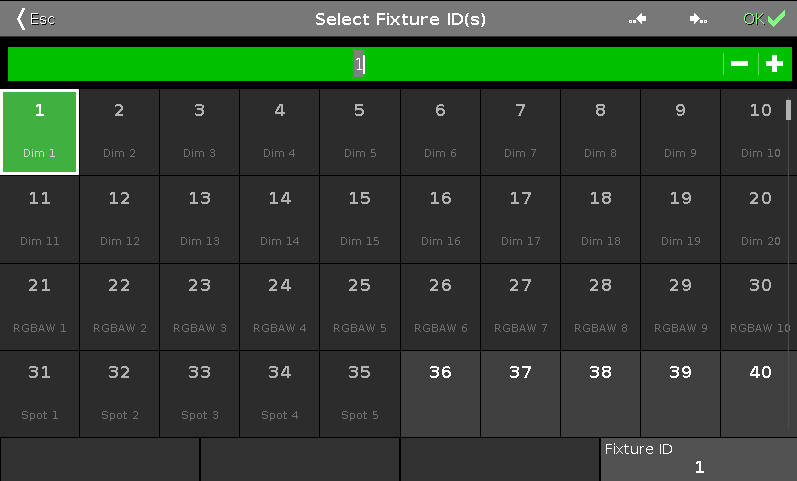 Figure 1: Select Fixture ID(s) Window
In this view, you select the fixture ID(s) for the selected fixture types.
To jump to the next available fixture ID back, tap the jump back icon  .
.
To jump to the next available fixture ID forwards, tap the jump forwards icon  .
.
The green edit line displays the selected fixture ID.
To jump to a specific fixture ID, type the number in the green edit line.
To jump one ID forwards, tap the plus in the edit line.
To jump one ID backwards, tap the minus in the edit line.
The fixture ID(s) are displayed in tiles.
The number in a white bold font is the fixture ID.
If a fixture ID is taken, there is the fixture type below the fixture ID displayed.
 Figure 2: Taken Fixture ID
If you select a taken fixture ID, the fixture ID tile has a red background.
 Figure 3: Available Fixture I__D
If you select a available fixture ID, the fixture ID tile has a green background.
To confirm the selected fixture ID(s), tap OK  in the title bar.
To leave the Select Fixture ID(s) Window, tap Esc  in the title bar.
Encoder Bar Functions
Section titled “Encoder Bar Functions” Figure 4: Encoder Bar Functions - Select Fixture ID(s) Window
Fixture ID:
To move the selection of the fixture ID(s), turn the encoder left or right.
To select a fixture ID, press the encoder.